Books that can change your life Rotating Header Image

information

Bit Literacy – 4

Bit Literacy -  la Productivité à l'Âge de l'Information et du trop-plein d'Emails 

Note : This week I am testing a new way of publishing: I will post this article in 4 sections, published throughout the week. What do you think? Do you like this better or would you prefer a complete report every time? Let me know through your comments ;) . The first part is here, the second there and the third here.

Summary and Book Report Part 4 :

  • Chapter 10 : Naming Files

Whatever file format you create, it needs a name. The choice of name is important, because a good name lets you find the file easily, and you will save time later because it will let you know what’s in the file without having to open it up.

Bit Literacy practitioners should therefore name files using the following convention: initials_date_subject.extension.

For example, a file by John Smith about plans for a Mars project should be called js-032008-plansproject.doc.

Dashes (-) should be your default separation character, because it is the only universal one; a file named with dashes separating the words can keep its name on all platforms – Windows, MacOS, Linux, etc – and even on the Internet (spaces on the Internet are changed to %20, so a file named js 032008 plansproject.doc would be changed to js%20032008%20plansproject.doc, not terribly readable…).

Even though this convention should be used for the vast majority of files, there are some notable exceptions:

    • The most used files. If you have a directory with files that you use regularly, put a space at the beginning of their name. That allows you to find them at first glance when you open the directory because the operating system sorts the files alphabetically and will list them first. If you use Windows or Linux, you can use the underscore (_). Also, it is useless to put a date on these files because they are modified regularly.
    • Templates. These are folders that are used continuously to create new ones based on the same structure, like quotes, for example, form letters, etc. Once again, no point in putting a date on them.


  • Chapter 11 : Storing Files

Appropriately named files are not enough: you must arrange them in well organized folders. Organizing the folders efficiently requires a little discipline, even though only a few are necessary to do the job well. Bit Literacy thus follows the Occam rule [translator’s note: probably better known to English speakers as the “KISS” principle (Keep It Short and Simple)]: you should take things as far as necessary, but no further.

In fact, most files trees can be kept to a hierarchy of two levels, similar to that used for storing photos. It’s easy to put in place. You need:

    • The Parent Folder

This is the folder at the highest level in the hierarchy, which contains all the files that are not managed by other tools, like iTunes or your email management program. In Windows, the My Documents directory (or Documents in Vista) is a good choice, and so is the Home directory on the Mac. You can also use another Parent folder for your personal files so that you can separate them from your professional files.

    • The Projet Folder 

The Parent directory should contain as many Project folders as necessary. Each Project folder should contain the name of a client (Tartempion Company) or of a general project (Bit Literacy Book) and should have files that relate to the project. It can also contain sub-folders. Sub-folders should be avoided in general, but can be used for special tasks. For example, you could create an “archive” folder for storing files that are older and no longer used, or a sub-folder “press cuttings” to place any press articles relating to the project, etc.

    • The Category Folder

Unlike the Project folder, a Category folder contains a single type of file. This could be an expenses folder, or invoices, or quotes or taxes…

Also, pay attention to keeping your desktop organized; it’s the first thing you see on the computer and it’s from where you launch most of your applications, so don’t confuse it with the Home or the My Documents folder.

[ad#ad-bas]

  • Chapter 12 : Other Essentials

- Typing Speed

It’s easy to get excited about technology, tools, functions, and gadgets and forget the simplest and most basic things. Like how fast you type. In as much as most of our occupations today include typing as a general rule, lots of typing, typing speed is integral to our productivity for many of us.

It is therefore unacceptable that someone needs to look at their keyboard because they don’t remember where the keys are, or they only use 20% of their fingers, the famous “hunt and peck” method using the two index fingers while the rest of their fingers are completely idle. It’s like a driver who only drives his sports car in first gear because he never bothered to learn how to shift gears correctly.

You must therefore learn how to type. Sixty words a minute is a good average, but with concentration, and a little practice, it’s not hard to exceed 100 words a minute.

Note : I think this advice is absolutely excellent. I would add that is it absolutely necessary to follow a typing class with a real teacher or some software – to be truly effective because typing with all ten fingers doesn’t come by itself; it’s been about 15 years since I have been typing on the computer regularly, and I started several years earlier on a typewriter, and I type with 4 fingers (index and middle). According to this test, my speed is about 55 words a minute, after being weighted for typing errors I encourage you to take it for one minute, using text "Zebra – Africa’s striped horse", choose “>PM” as a unit of measure and post your results on the form at the end of the article to compare our results.clip_image001. You can then use free software like Keybr (on line) , Sense-lang (on line), Rapid Typing (for Windows), etc. to improve.

- The Dvorak Keyboard

Attention, this is for users who are not prepared to shrink from any sacrifice to increase their productivity ;) Actually, did you know that the QUERTY keyboard layout (AZERTY for our Gallic friends) is inherited from old typewriters at the end of the 19th century, that needed neither processor nor hard disk or even electricity in order to work? ;)

Now the placement was designed to slow down typing, for a simple reason. Let’s take a look at a  picture of an old mechanical typewriter:

Machine à écrire mécanique

As you can see, there is a black and red ribbon near the paper. The way the machine works is simple: when you hit a key, it raises up one of the metal letters that are located between the keyboard and the paper. If two letters side by side are hit too quickly one after the other, they both get stuck, quite simply because no matter what letter it is, they all strike in the same place, in the center of the ribbon. Thus the QWERTY layout (which in France became the AZERTY keyboard) was designed by Remington to slow down keystrokes in order to avoid them sticking. It is therefore a deliberate sub-optimization which we have sadly inherited on our computers due to force of habit.

Fortunately, since then other keyboard layouts have been invented that are much more efficient and designed to optimize input speed. The most well known, and most used, is the Dvorak. I invite you to go to this site and read some of the articles and download some pilots. You can also read this article or this one. Apparently you can improve your typing speed about 40% with this keyboard, and learning to type – with all ten fingers – is twice as fast. If one of you embarks on this adventure, let me know, I will write an article on this topic in the future ;)

- The Lever Effect

It is possible to use software that acts as a lever to make you more productive with digital information: software that will let you register abbreviations that are then automatically converted into words or actions. You can, for example, assign "co" for the name of your company, "add" for its address: whenever you type these two or three letters, the software picks up on it and replaces it with the word or sentence that you have previously defined.

Examples of such software:

- Back Ups

There are two types of users in the world: those who already back up, and those who will do it some day, usually after having lost weeks or months or years of work.

Note : I can only confirm this: having worked for more than 8 years in the field of information technology services, I can confirm that backing up is one of the most frequently neglected subjects, especially by smaller businesses and individuals. It always amazes me that someone who has spent maybe 20 hours writing a report or a document won’t take one minute to back it up… Back up frequently, back up a lot, back up too much even; it is better to have too many backups than not enough. See Carbonite, an excellent automatic online backup and inexpensive.

Book Critique:

This book clearly stands out among the technology books that come out every year. It’s a far cry in every way from the screen captures, detailed tutorials on this or that aspect of software, or weighty assessments of useless functionality. You get the feeling that Mark Hurst wanted to write a timeless book about digital information (understand by that: something that can still be read 3 years after publication) by focusing not on digital information but on managing the information, not on the tools but on the methods, not on the details but on the overarching approach. I think that he pulls it off remarkably well and I take my hat off to him.

This book is packed with excellent advice, tricks and methods to improve everyone’s productivity with digital information. I have been an information technology professional for more than 8 years and my job leads me often to the analysis of methods and tools for small and medium sized companies, and I can tell you that the under-utilization of tools and bad methods are rampant in companies. There really is an illiteracy about information technology and digital information among a large part of the population, it this fact above all that motivated me to launch my Techno Smart French blog a year ago, which, sadly, I have not promoted enough. This illiteracy is taking its toll on productivity in our country and the rest of the world; obviously a weaker place with respect to where it could have been after several years. People who master these two domains are the scribes of today and have the same advantages that those who mastered reading and writing enjoyed when more than 90% of people didn’t know how to read or write.

I buy-in completely to the general message delivered by Mark Hurst, a message delivered with ideas, methods, and tips which are absolutely clear and concise most of the time – I have even learned a few tricks myself. But certain passages made me raise my eyebrows, being a technology expert. First of all, Mark Hurst is resolutely anti-Microsoft and resolutely pro-Apple, and even though he justifies it, but in such an unobjective manner that it is nothing more than a cliché. I claim that some Microsoft software is totally efficient, if you know how to use it. In particular, I find that Outlook and OneNote are extremely practical applications, especially the 2007 versions. Most 2007 version software are furthermore exceptionally ergonomic and practical thanks to the new interface that Microsoft developed, incontestably their best invention for years.

However, I am absolutely not in agreement on certain points; for example, I use an email management system that is entirely different from Mark Hurst’s, a method which he would snub for sure because it’s based on Outlook, automatic filtering rules, use "read" and "non-read" markings on emails, some deletions but also plenty of archiving in the inbox. In fact, I was applying GTD to my emails without realizing it for years, as I explain in my article on Implementing GTD. The author seems to have overlooked the progress that has been made in the subject of file indexing, which almost makes it antiquated to worry about where emails go. It is also astonishing that he doesn’t mention technologies such as voice recognition which seems to me an excellent means for productivity, perhaps that’s an idea for another edition of the book?

Overall, this book is good and even a must-have for everyone from the unskilled to those who are "good" at Bit Literacy. Sadly, I’m afraid that few people will make the effort to read this book because just look at the number of people who have to get started with digital information, as though it were an insurmountable problem, somewhat optional and somewhat forced on by by circumstances that we don’t like. Perhaps illiterate peasants in the 19th century also said that they had to get started with reading, I don’t know. For those among you who know that it’s necessary to get educated in this area and are not opposed to reading a book about it, jump right in. If, what’s more, you are pro-Mac and anti-Microsoft, you will be in heaven ;) .

If you are an information technology professional or other expert user, my faith in reading this book is still justified, but the odds are you that you are already using work methods that are not easily replaced by those suggested by the author. But there are good ideas to be had here and there.

In any case this book made me more conscious that I have a lot to say on this subject myself. Enough to write a whole book, I think. I will think about it ;)


Strong Points:

  • Overall approach original and intelligent
  • Contents relatively timeless (by comparison to the average information technology book) 
  • Numerous ideas and interesting methods, even for expert digital information users
  • Revolutionary for everyone who is not an expert in digital information

Weak Points:

  • Anti-Microsoft and pro-Apple absolutely not in an objective way 
  • Doesn’t talk about certain technologies like file indexing and voice recognition
  • Methods that make a digital information professional like myself raise his eyebrows; there are certain points on which I absolutely disagree with the author; I will write an article about this soon

This article translated from the French by www.DeansResource.com

My rating : image image imageimageimageimageimageimageimage (if you are not an experienced digital user)

image image imageimageimageimageimageimageimage (if you are a seasoned expert with your own methods)

Add half a star if you have a Mac and another half star if you are anti-Microsoft.

Have you read the book? How do you rate it?

Mediocre - No interestReasonable - One or two interesting paragraphsIntermediate - Some goods ideasGood - Had changed my life on one practical aspectVery Good - Completely changed my life ! (No Ratings Yet)
Loading ... Loading ...

Read more reviews about Bit Literacy on Amazon.

PMBA Challenge:

Cost of the Book: € 16,34
Total Cost of the Project:  159,99
Number of Pages: 180
Total Number of Pages: 2146
Reading Time: 3H
Time to Write this Article: 6H
Total Project Time: 87H

Buy this book on Amazon :

Bit Literacy – 3

Bit Literacy -  la Productivité à l'Âge de l'Information et du trop-plein d'Emails 


Note : This week I am testing a new way of publishing: I will post this article in 4 sections, published throughout the week. What do you think? Do you like this better or would you prefer a complete report every time? Let me know through your comments ;) . The first part is here, and the second there.

  • Chapter 7: Managing Photos

Everyone who was born before 1990 will remember how we handled photos before digital photography: each step in the photo cycle was defined by a single thing – cost. Film was expensive to purchase, and even more expensive to develop. Errors were costly. Often, at the moment of the photo, everyone posed, and you counted to three before taking the photo hoping that everything would turn out all right. It was only in special circumstances, like a wedding, that you took more than one photo of something. Once the photos were developed you kept them forever, even not very good ones.

Polaroids allowed us to use instant photos at a higher cost,  and poorer quality, and it was impossible to make copies.

Digital photography has completely changed that by offering photos instantly, of higher quality, and at a lower cost. Currently, taking one or 10 photos of the same subject costs the same price – zero – at least as long as you don’t print them. But ironically, this new era brings with it a new problem, common to all other digital information; you must manage the abundance of it. It’s not unusual for digital photo owners to have several thousand photos on their hard drive.

How do we recover from this? Information technology companies offer us tools that allow us to add notes to our photos  or to assign "tags" to them – descriptive keywords – so that we can find them easily. These tools are not complete, locking the user into a proprietary system and are not as efficient a real Bit Literacy method that can be applied to photos. Here is one, in three simple steps:

1 – Maximize the bits

The "film" for a digital camera is free, so make the most of it. Take several photos of the same subject, or at one, two or several second intervals. Try to vary the angles. Don’t hesitate to take one more photo "just in case."

2 – Filter

With several photos of the same subject you can separate the wheat from the chaff. Filtering means deleting all the photos that you don’t want to keep, including good photos that are almost the same as photos that you are going to keep. Certain users have difficulty doing that, especially when Aunt Marge smiles every time she looks at them on the computer screen. Try. It gets easier with practice. The "delete" button will become your best friend.

3 – Store in two levels 

Even photos that have been carefully filtered are of no use if users can’t find them. Without an appropriate storage method, they will fall into the same lack of order as the previous photos or get lost somewhere on the computer.

Here is a simple method for Bit Literacy:

Sort the photos in folders [year] -> [month-event]

That way sorting begins with the year. For example, if you started taking digital photos in 2004, then you will have folders named 2004, 2005, 2006, etc. up to the present year.

Within these folders you would create 12 sub-folders named for the months – using either numbers or letters.  To find things more easily, you could also add a short description to the folder if you had done something special at that time, for example [2006] -> 12-Trip to Sweden].

This system has several advantages; it’s simple, easy to maintain, and allows you to file all your photos year by year, once and for all, and find the photos you are looking for in no time – and all without using a single software application.

Note: I have been using a similar system for years – without describing events – to manage my more than 5,000 digital photos and I completely agree with the author on this point; there is no simpler or more efficient system.

Additionally, you can use a photo management software application which supports two level storage, like Google Picasa, but don’t get dependent on it. 

Important note: Backup your photos regularly using an external device such as a hard disk or a thumb drive. And backing up means that your data should be stored on at least two different devices – the internal hard drive on your computer and a thumb drive, for example ;) .

[ad#ad-bas]

  • Chapter 8 : Creating Bits

If you have something to say, do it in a concise manner. Every time you send an email, take a photo or create a web page, you are adding a droplet to an ocean that is already deep.

Digital information today is powerful and in abundance. The resource that is scarce is the time available to people receiving your messages. Becoming Bit Literate implies that you respect this scarce resource.

That means:

    • When you write an email, be concise and to the point.
    • When you show photos, only show the best ones, never show copies of similar photos or bad photos.
    • When you create a web site, ensure that the goal for your site is clear on your home page at first glance.

No matter what, the second question to ask yourself is "Is it really necessary?" Apply Occam’s Rule to everything you create.

Two ideas are useful for this: important things first, and structure.

- Important Things First 

Always communicate the objective of the message as quickly as possible. When an email arrives in your inbox, the first thing that the user sees is the header (the subject line or the purpose of the email). Write relevant and concise titles if you want your correspondents to read them.

The most important idea or the purpose of the message is called the hook. So applying this method requires talking about the hook as quickly as possible, then end the message as quickly as you can afterwards. But what is between the hook and the end of the message? The support, which includes any necessary information to explain or support the hook.

- Structure

Therefore a Bit Literacy compatible email should use the following structure:

  1. Subject, which includes the hook
  2. Greetings
  3. Hook (repeated)
  4. Support
  5. End

Of course, some emails don’t need greetings or support, but this general structure can be applied to most emails.

But emails are not enough, all digital messages, whatever they are – web sites, Powerpoint presentations, Word documents – should adopt a Bit Literacy compatible structure by following these steps:

  1. Context: document title, author’s name, date, introduction (optional)
  2. Hook
  3. Support
  4. Appendix (optional): a collection of resources for those who wish to go further

Some additional advice:

- State the obvious. Avoid ambiguities; the reader should be able to understand the message without asking for clarification.

- Avoid relative dates. Tomorrow or today loose all meaning really quickly.

- Remember that bits are everywhere and forever. Never write an email that you wouldn’t want to send to the whole planet.

- Never send emails while you are mad. Rather than write an email while you are feeling angry, let it wait for at least a day before clicking irrevocably on the Send button.

- Emails are a poor mechanism for conveying emotions and subtle signals. That’s why we invented :) and ;) . Avoid using this means for sending this type of message and use the phone instead, or even better, do it in person.

  • Chapter 9: File Format

It’s very easy to forget how important file format is, and truthfully, it’s not necessary to be an expert in the field, but Bit Literacy practitioners should understand the basics.

Every Windows file uses 3 letters after its name to indicate its file format (but it is hidden by default in Windows). Thus a Word document has the suffix .doc (or .docx for the latest 2007 version), a picture can have different suffixes like .jpg, .bmp, .png, etc., PDF files have the suffix .pdf. In general, most applications have their own file format and can also work with other formats whether they are universal, like JPG and XML or proprietary like .doc.

The extension tells Windows which program to use to open the file. So if you rename your file rapport.doc to rapport.pdf, then Acrobat Reader will try to open a Word file, and obviously…

Extensions are meaningless on Macs unless they are networked with PCs. 

Note: I won’t expand on this subject, others have talked about it sufficiently well on the web, for example, see this excellent Wikipedia article.

To be continued… ;)

Bit Literacy – 2

image

Bit Literacy -  Productivity in the Age of Information and E-mail Overload 

Note : This week I am testing a new way of publishing: I will post this article in 4 sections, published throughout the week. What do you think? Do you like this better or would you prefer a complete report every time? Let me know through your comments ;) . The part one is here.

Summary and Book Report, Part 2 :

Part II : The Method

  • Chapter 4: Managing Incoming E-mail

There is a solution for coping with the email avalanche: don’t bury yourself in it.

Actually, the email avalanche makes users less productive in many different ways:

  • It takes more time for an overloaded user to reply to an incoming email because every new email is in competition with all the others to attract the user’s attention.
  • Setting priorities is more difficult.
  • It takes time to find messages in a full inbox.
  • It’s hard to remember which email says what.
  • An overloaded user reduces everyone’s productivity because others must send new emails to remind him to deal with what he hasn’t done.
  • In some software, like Microsoft Outlook, very large inboxes can make the program crash.

What’s more, this loss of productivity, and a full inbox, also have psychological costs:

  • Overloaded users are never sure if they have forgotten something and live in fear of being “discovered” or punished for what they have forgotten.
  • A full inbox which contains weeks and months of old work constantly reminds the user how far they are from being “finished.”

An email workload is measured by the number of emails that are in the inbox. Inboxes with one or two thousand messages are common in the professional world (Note: My professional inbox right now contains 5,183 emails, but I work in a different way from Mark Hurst, as I will explain later.)

The most common reason for overloaded inboxes is because users use them for things that email wasn’t designed for:

  • To-do lists
  • Filing systems
  • A calendar
  • A list of book marks
  • An address book

It’s a mistake to rely on your inbox for getting things done. The inbox is only meant to be used as a temporary holding place for receiving emails, briefly, before they are deleted or moved elsewhere.

(more…)

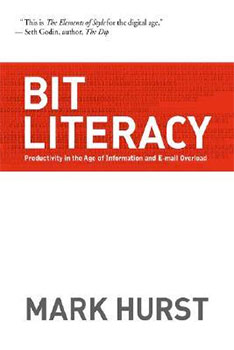
Bit Literacy: Productivity in the Age of Information and E-mail Overload

image

Bit Literacy -  Productivity in the Age of Information and E-mail Overload 

One Sentence Summary : Many people are as unprepared for the onslaught of information in this new era as illiterates would be in a library, even the younger generation, as familiar as they are with computers, are not so with the massive amounts of information that come their way; this book teaches us to manage it via various diverse methods, tools, tips and software.

By Mark Hurst, 180 pages, 2007.

Note : This week I am testing a new way of publishing: I will post this article in 4 sections, published throughout the week. What do you think? Do you like this better or would you prefer a complete report every time? Let me know through your comments ;) .

Summary and Book Report :

Mark Hurst begins by telling us that bits (basic unit of every data file) do not have physical weight – you can fit a 25-volume encyclopedia on a single DVD – but the information that it conveys has weight: the amount of information in a 25-volume encyclopedia is the same whether it is on DVD or on paper. Bits weight down the people who receive them, mentally and emotionally, by calling repeatedly on their attention and occupying them.

Bits appear everywhere today, traveling at the speed of light from one end of the planet to the other, and carrying vast amounts of information that is more and more important, more and more diverse, and on a significantly increasing number of peripherals – computers, phones, PDAs, MP3 players, cars and even refrigerators. The number of emails is exploding, new acronyms and new technologies appear every day and millions of people, from students to doctors, from teachers to CEOs, from graphic artists to computer experts, are stunned by the amount of information that they receive every day and which they must deal with.

There is a solution to this worldwide problem: learn to manage this massive amount of information with good methods and tools, using a process similar to how literacy allows us to understand the symbols that form written language. This skill is so important in our computer age where information and communication are pushed at us that those who possess it can overcome the problem of overload, climb to the top of their profession and enjoy a life with less stress, better health, and more time for family and friends,

(more…)